
More ways to bundle. One price you can trust.
Create mix-and-match bundles, quantity breaks, build-a-box offers, and free gifts. Shoppers choose on your storefront. Shopify enforces the price at checkout.
No fabricated reviews. No mystery pricing claims. Just the product as it works today.
Add 2 more to save 15%
Start simple. Go custom when it earns its keep.
The same published campaign can meet your storefront at the level of control you need.
Theme app blocks
Add product, collection, landing, and cart surfaces in the Theme Editor. No theme-file write required.
Explore this path →Ten committed designs
Choose six full-page experiences or four drop-in sections, each with its real settings and limits.
Explore this path →A custom page contract
Build your own markup against the data-bundle attribute API while checkout keeps pricing authoritative.
Explore this path →Make the next item worth adding.
Build up to 20 percentage steps, see the current draft as a customer from any step, and save or publish only when you mean to.
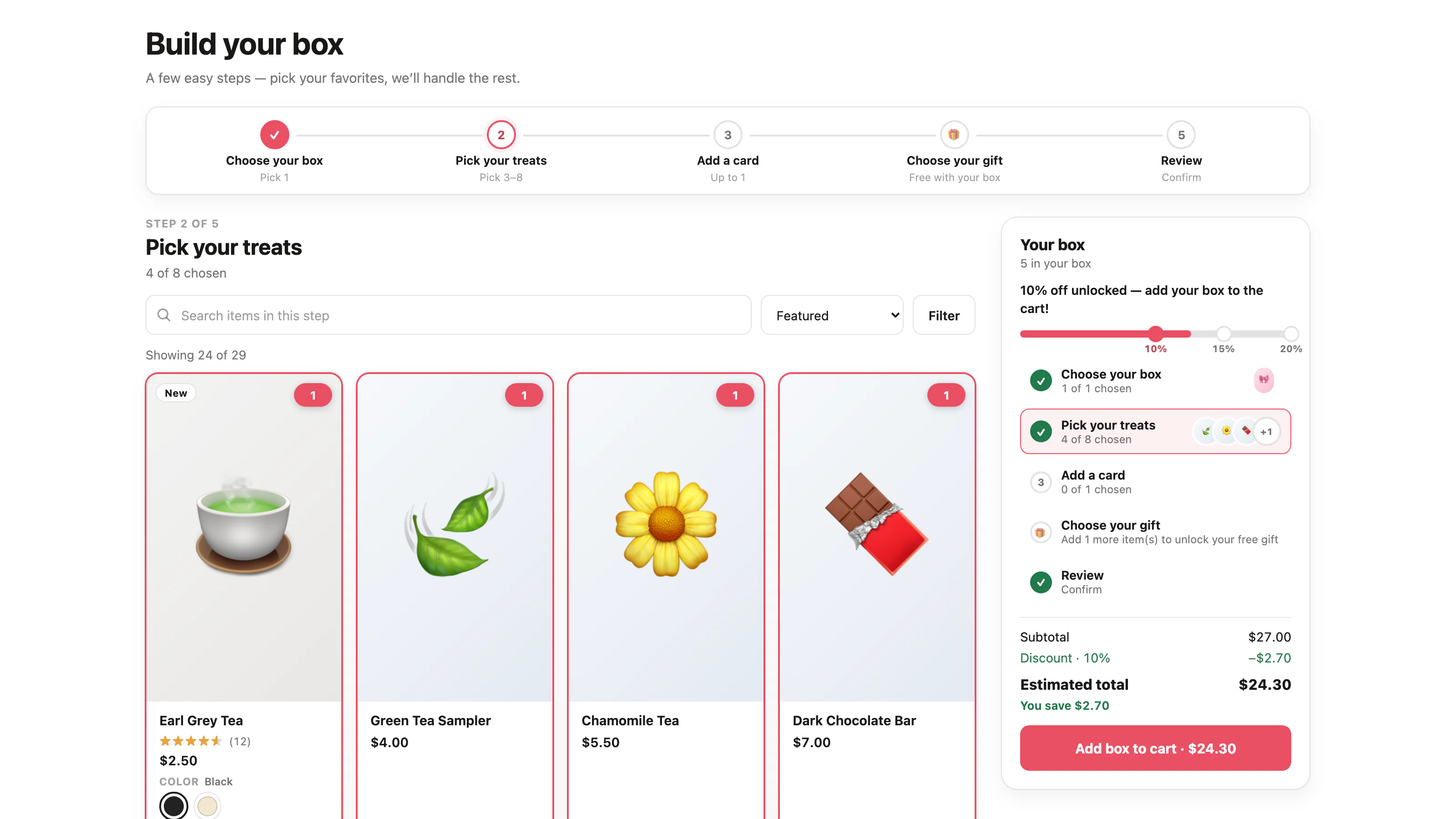
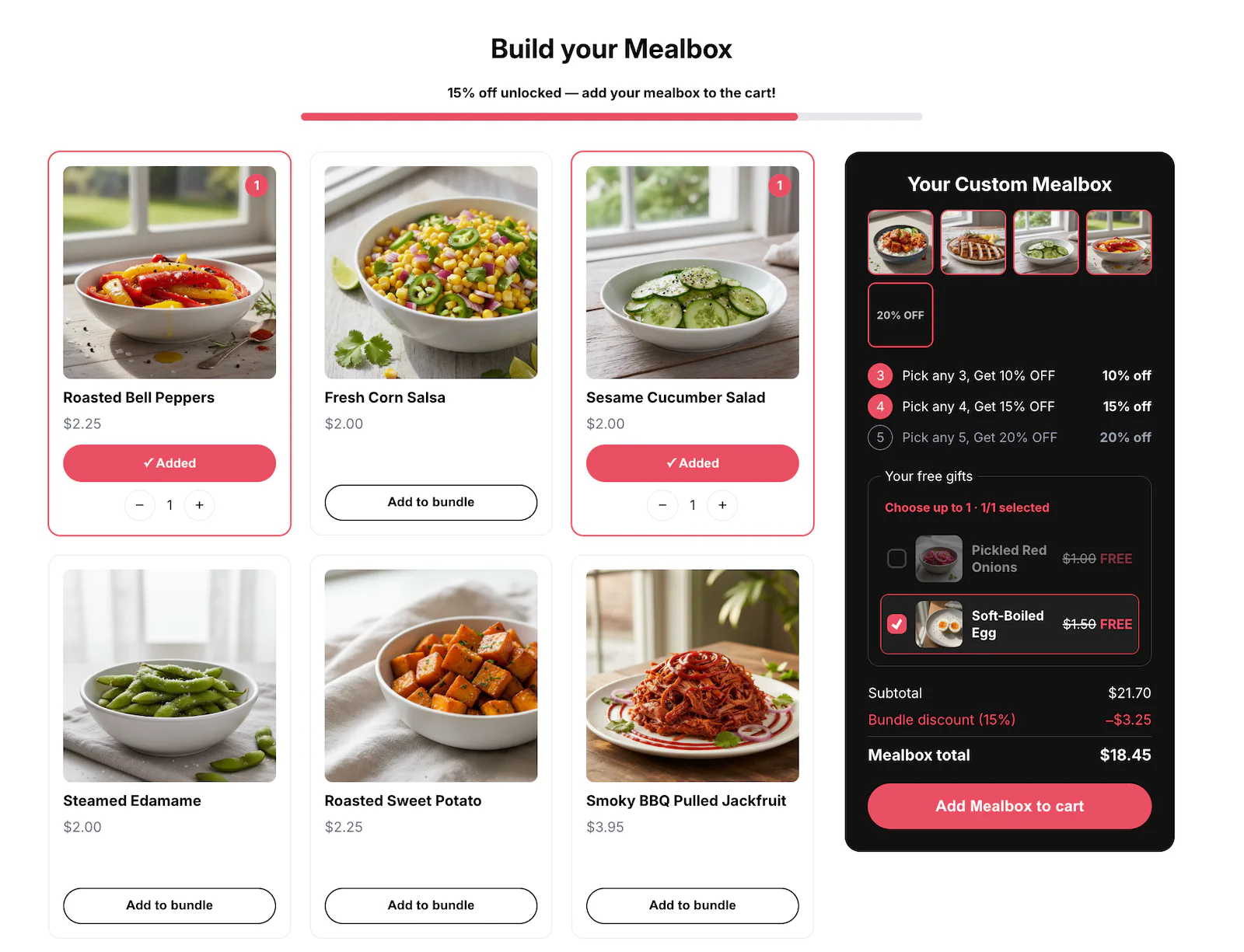
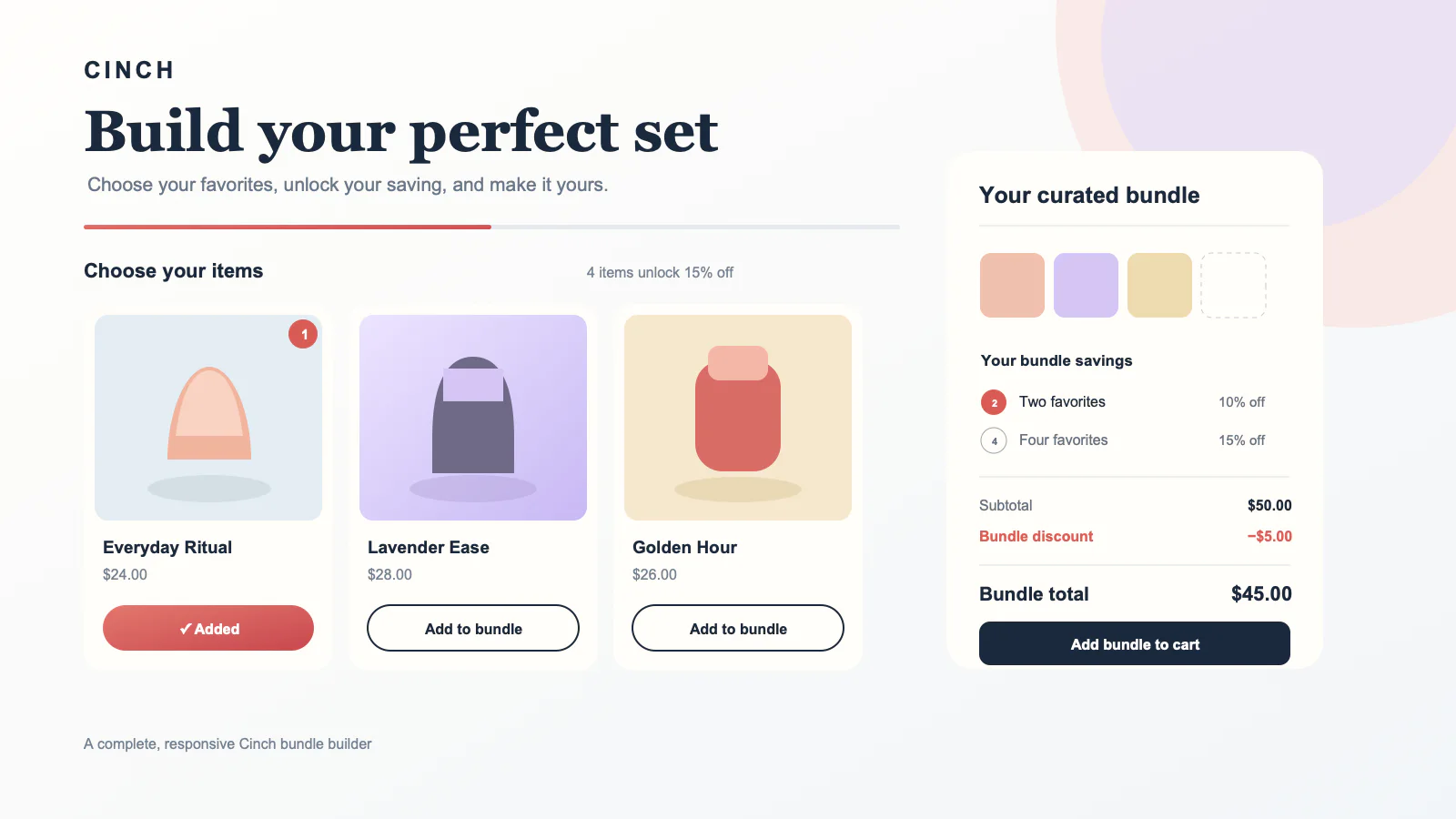
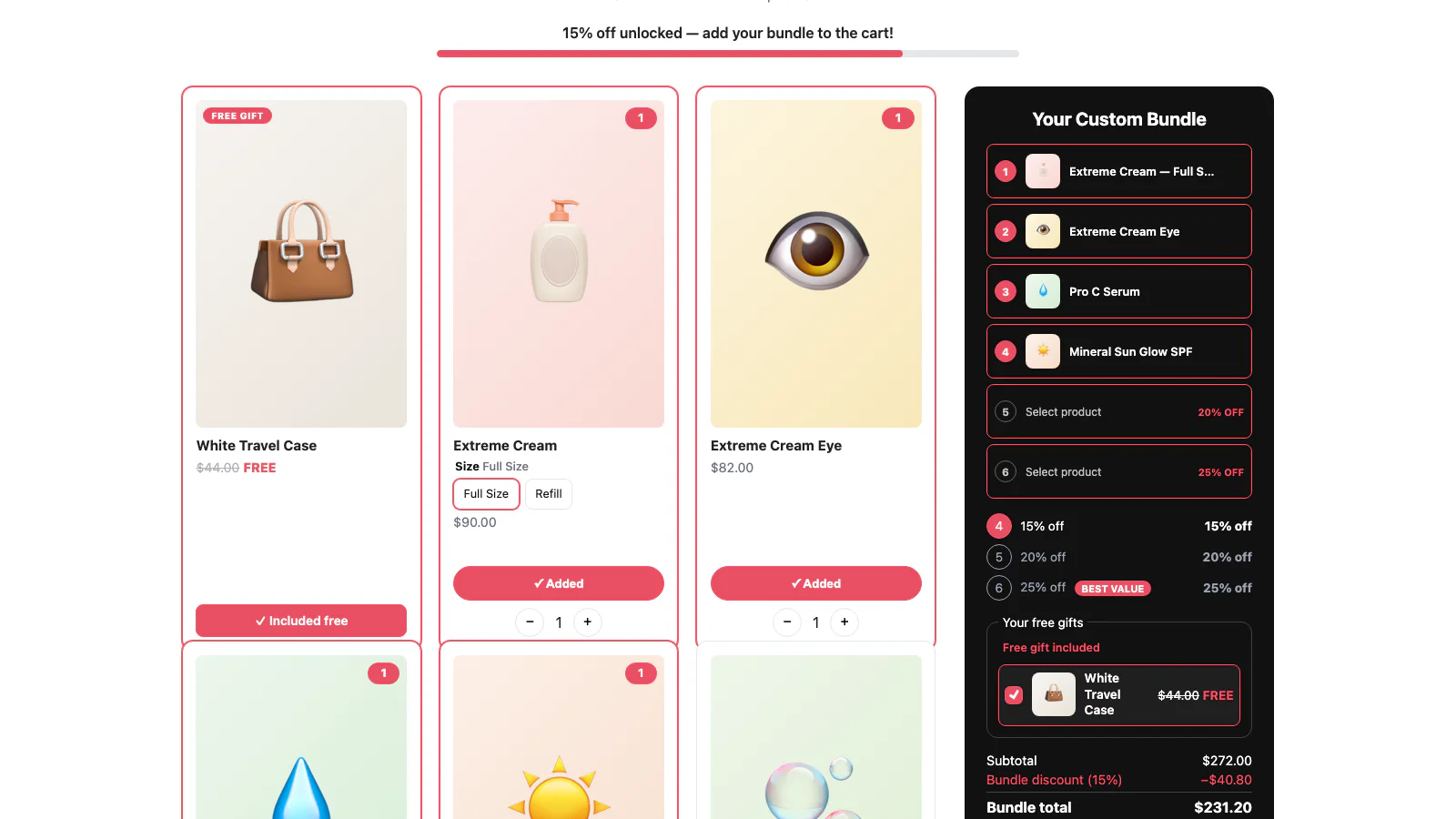
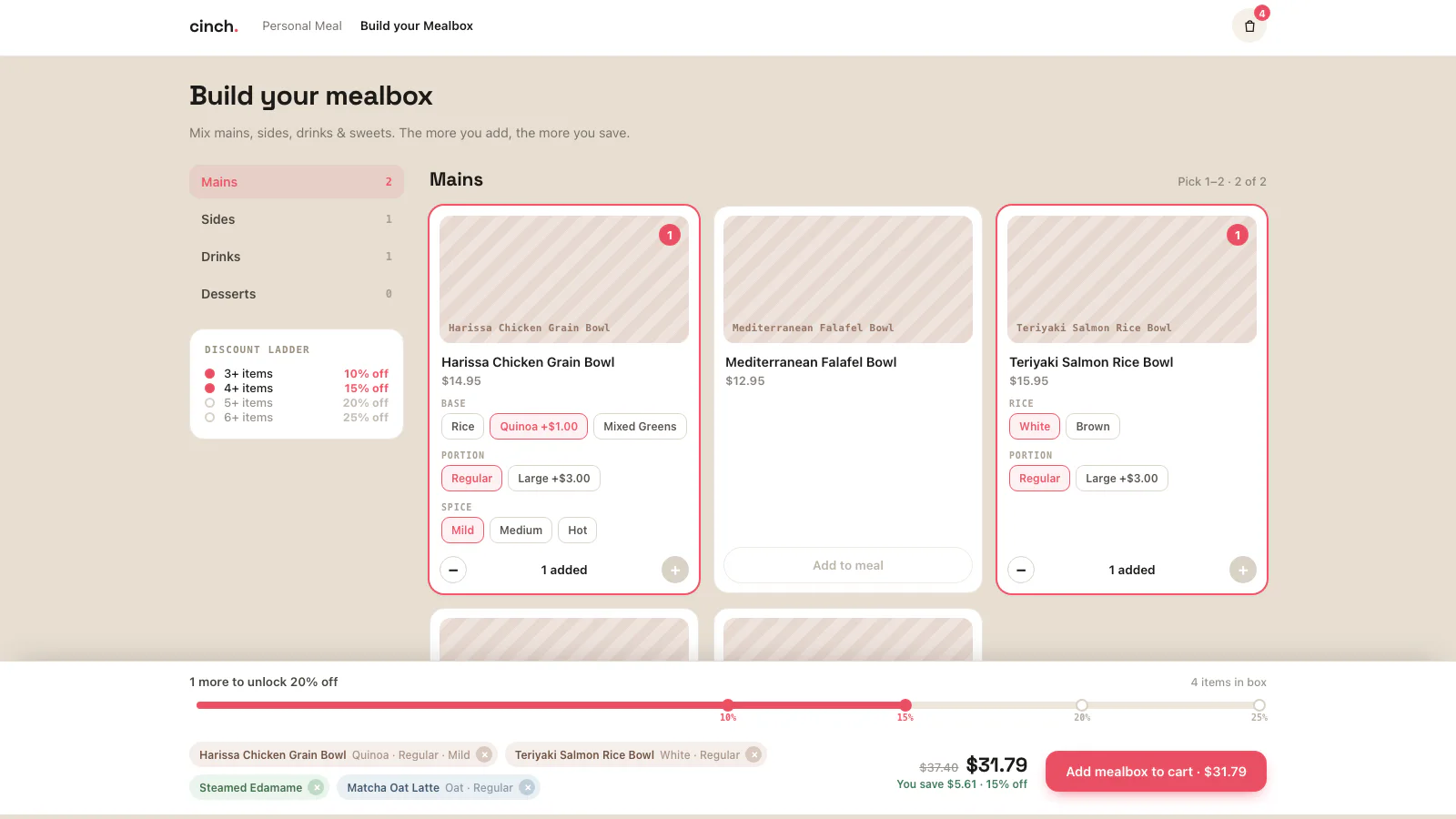
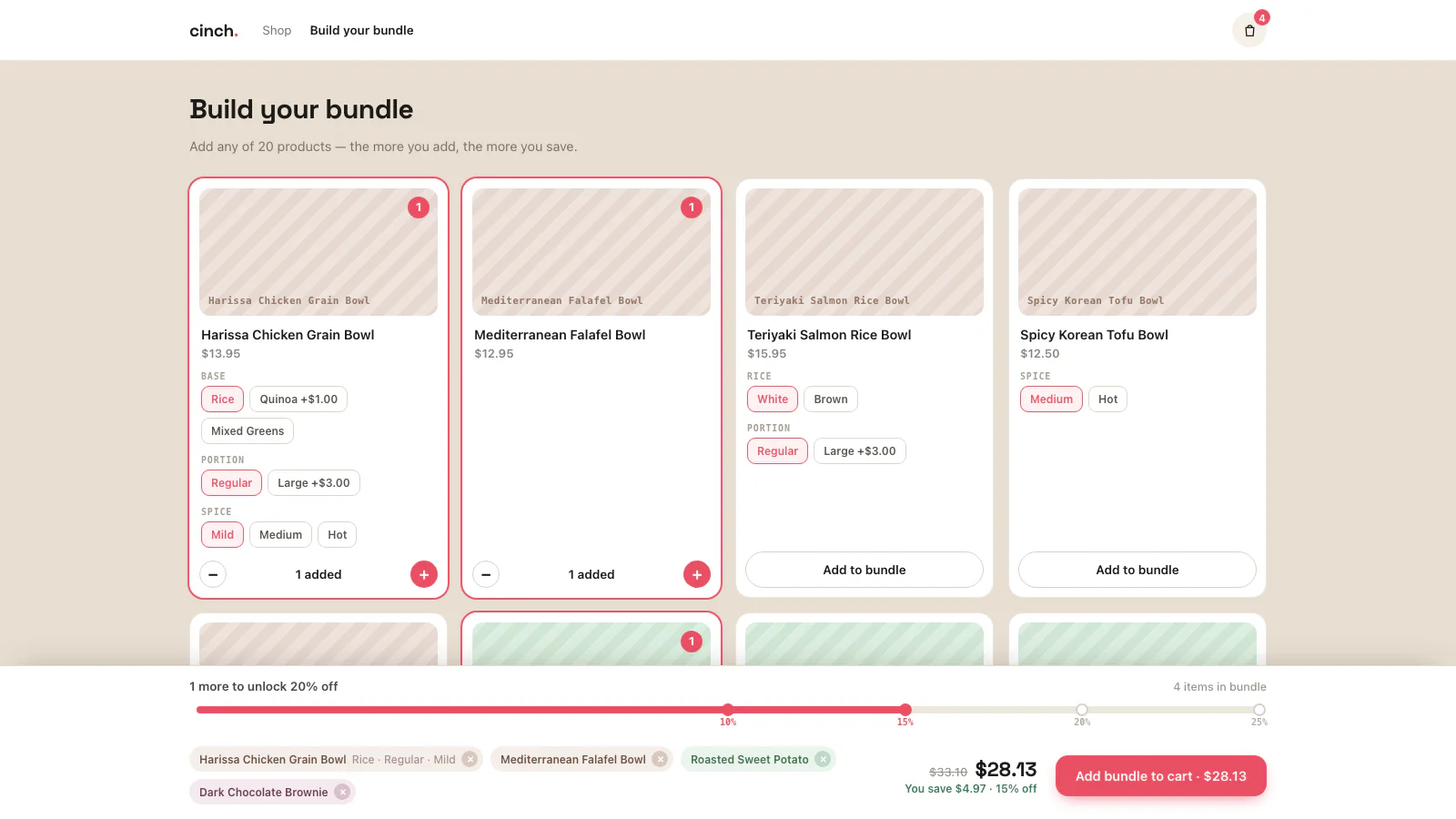
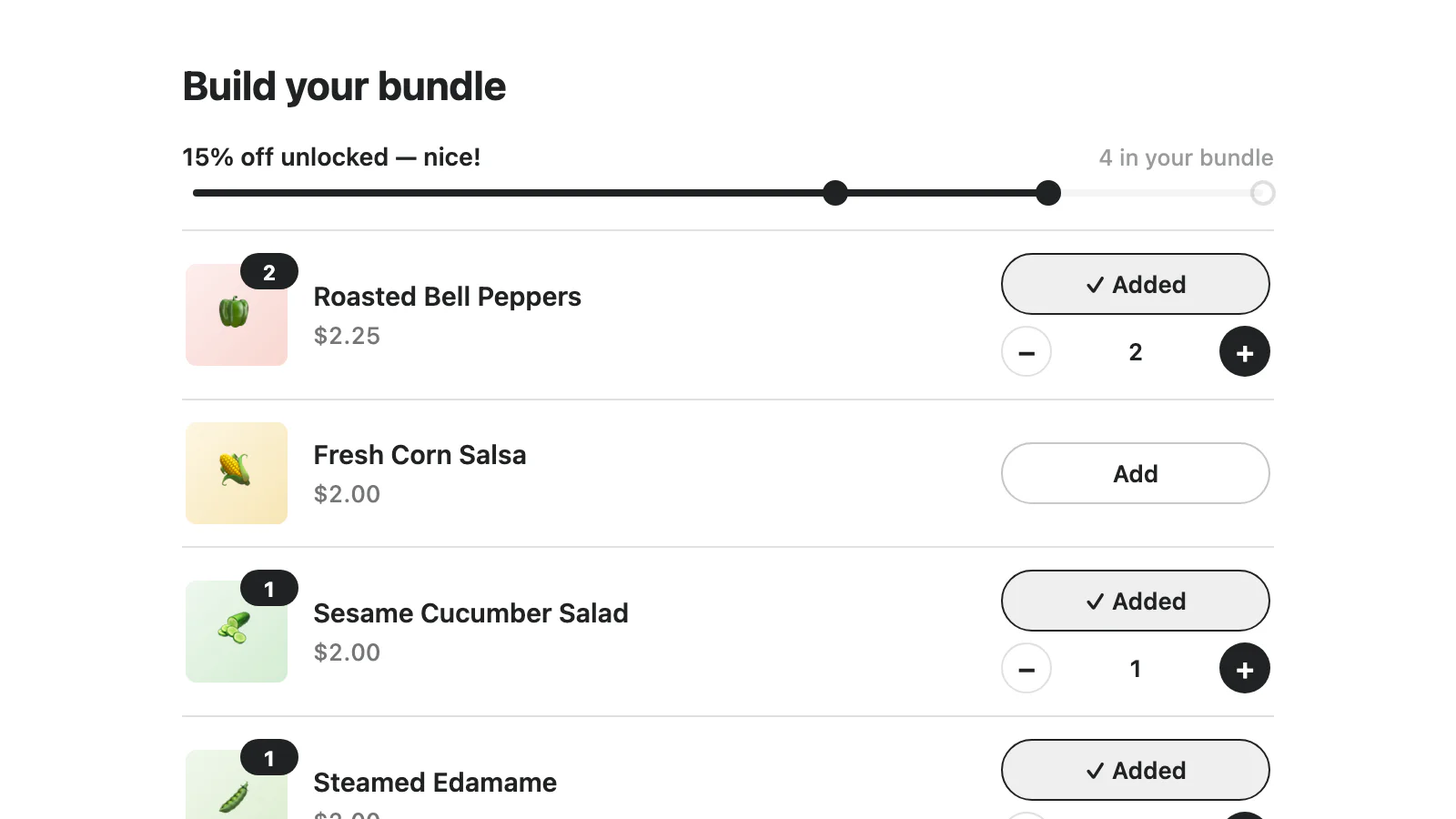
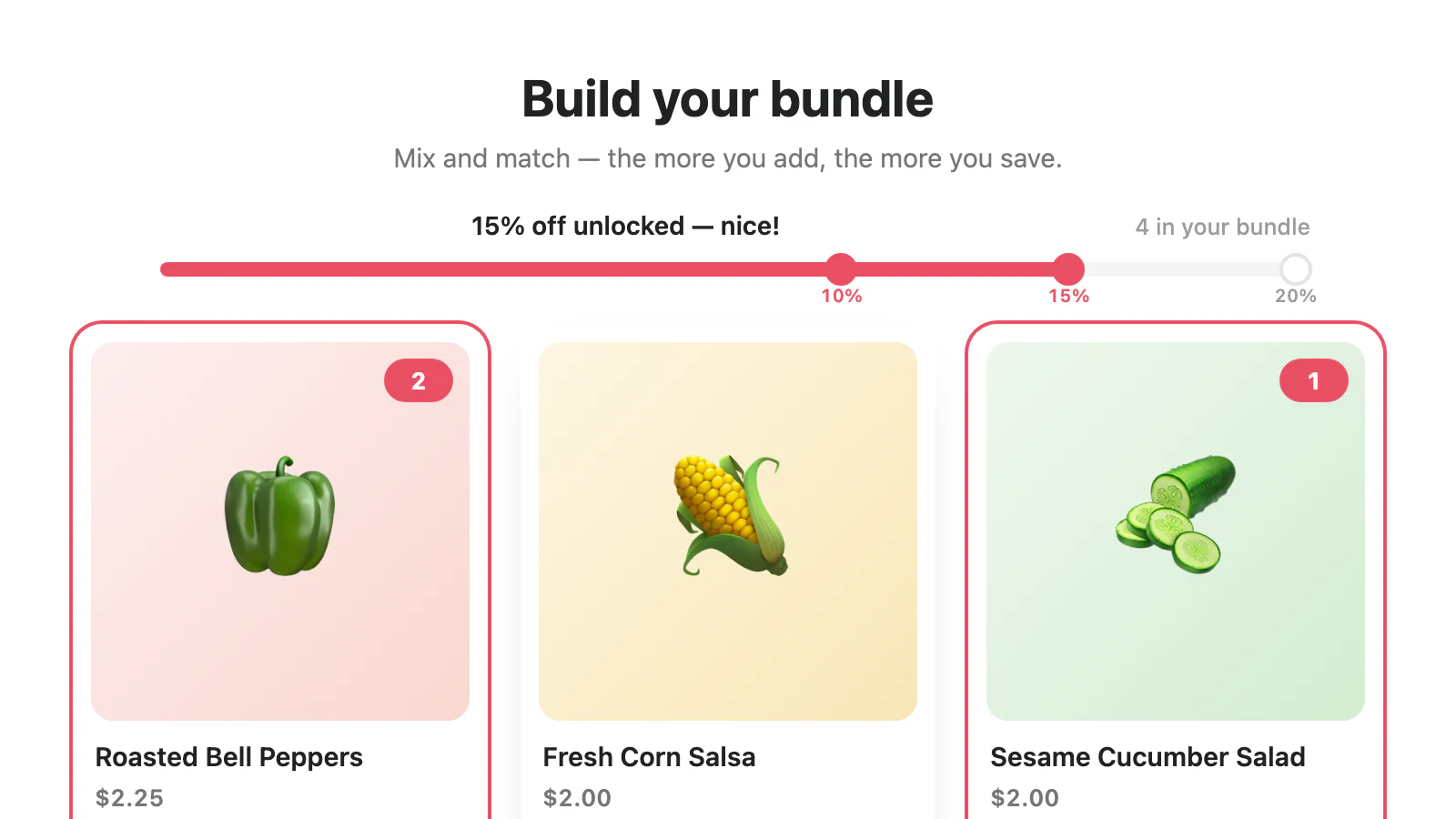
Choose the offer before you choose the chrome.
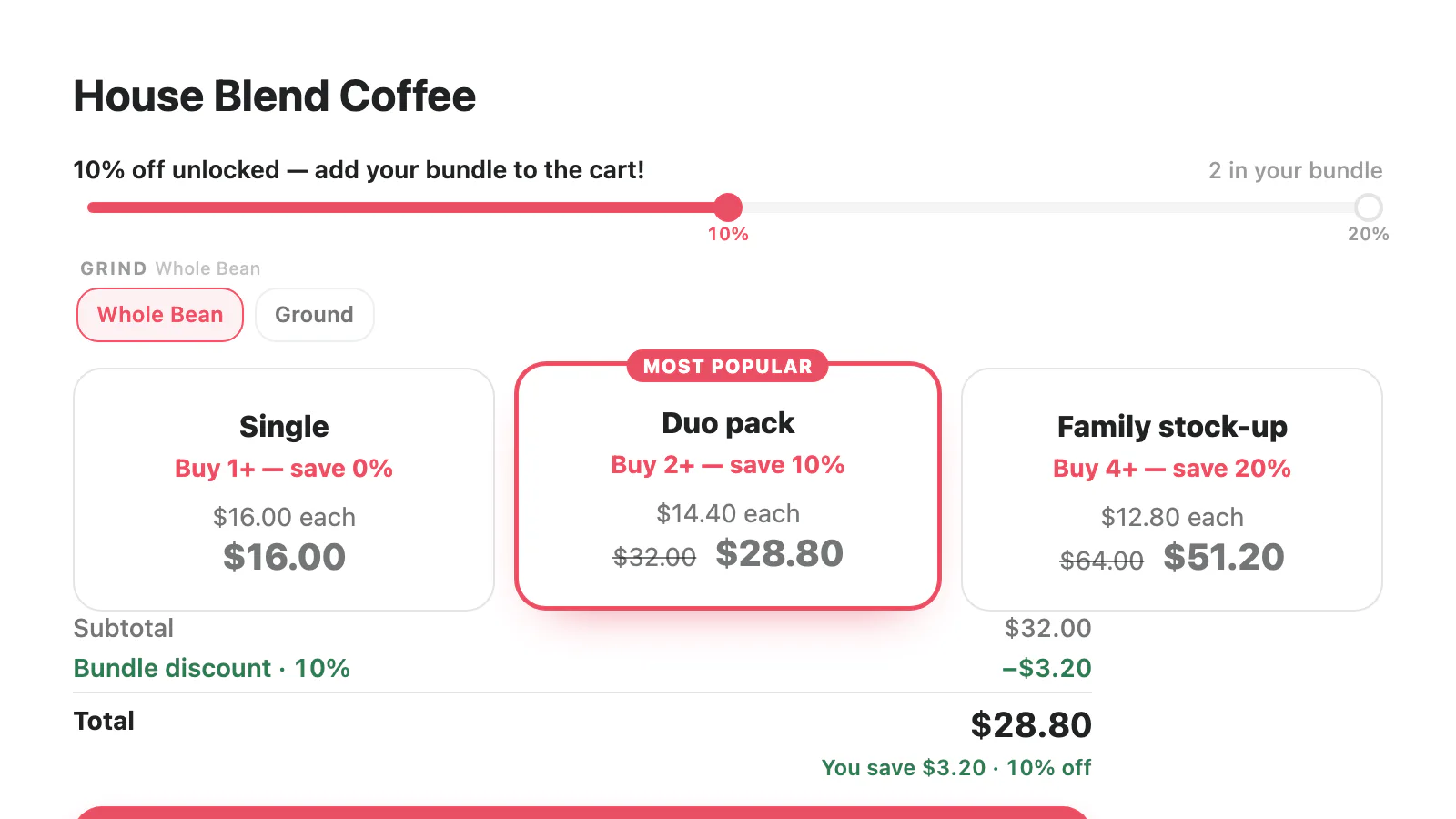
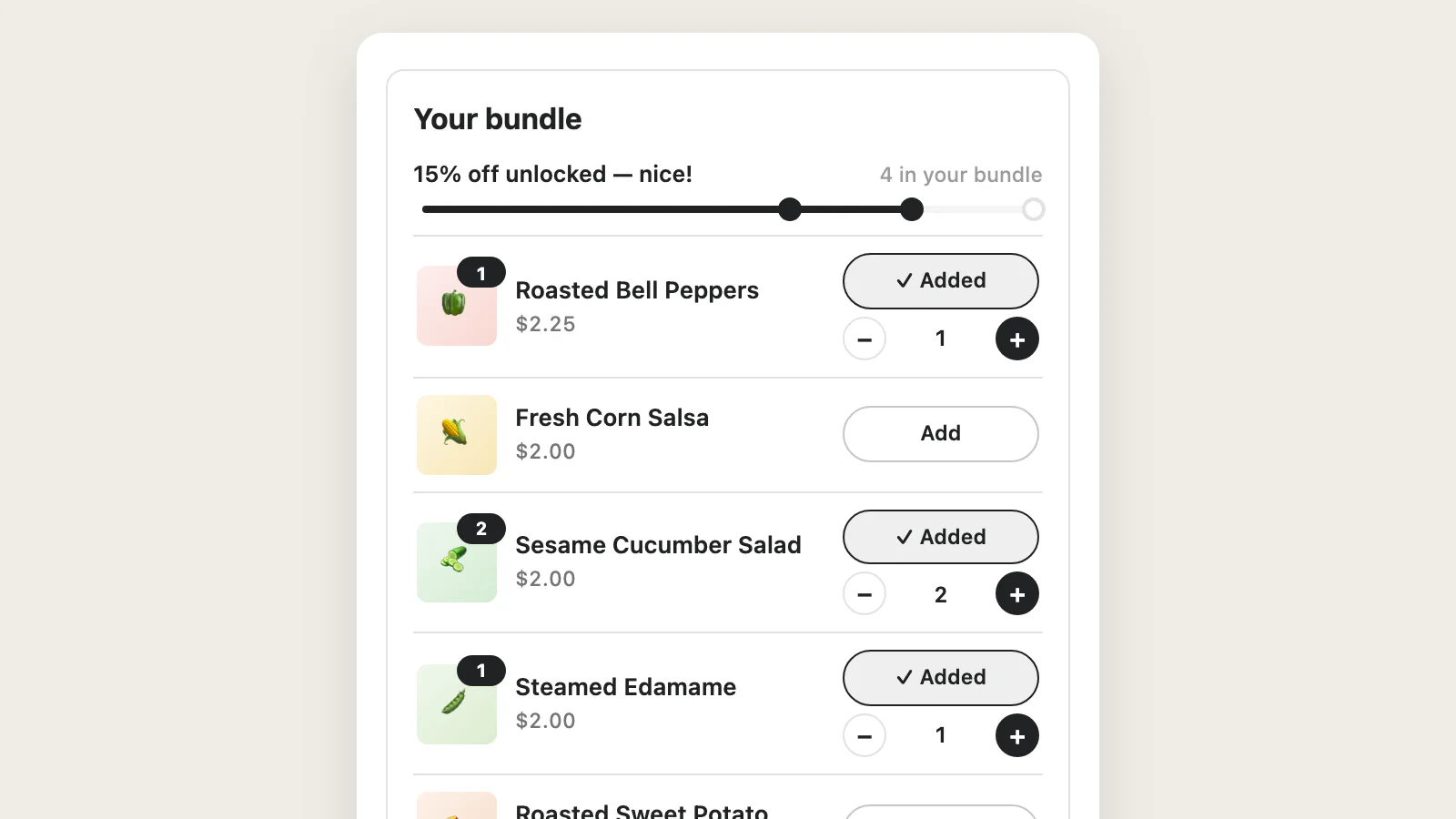
Three mechanics cover shopper-built sets, single-product volume, and ready-made fixed bundles.
Custom bundles
Choose what shoppers can combine, set percentage savings, and turn a flexible product mix into one clear bundle in the cart.
See how it works →Fixed bundles
Sell a ready-made bundle from its own product page and expand it into the real component items at checkout.
See how it works →Quantity breaks
Create a volume ladder for one product, with a larger percentage saving at the quantities you choose.
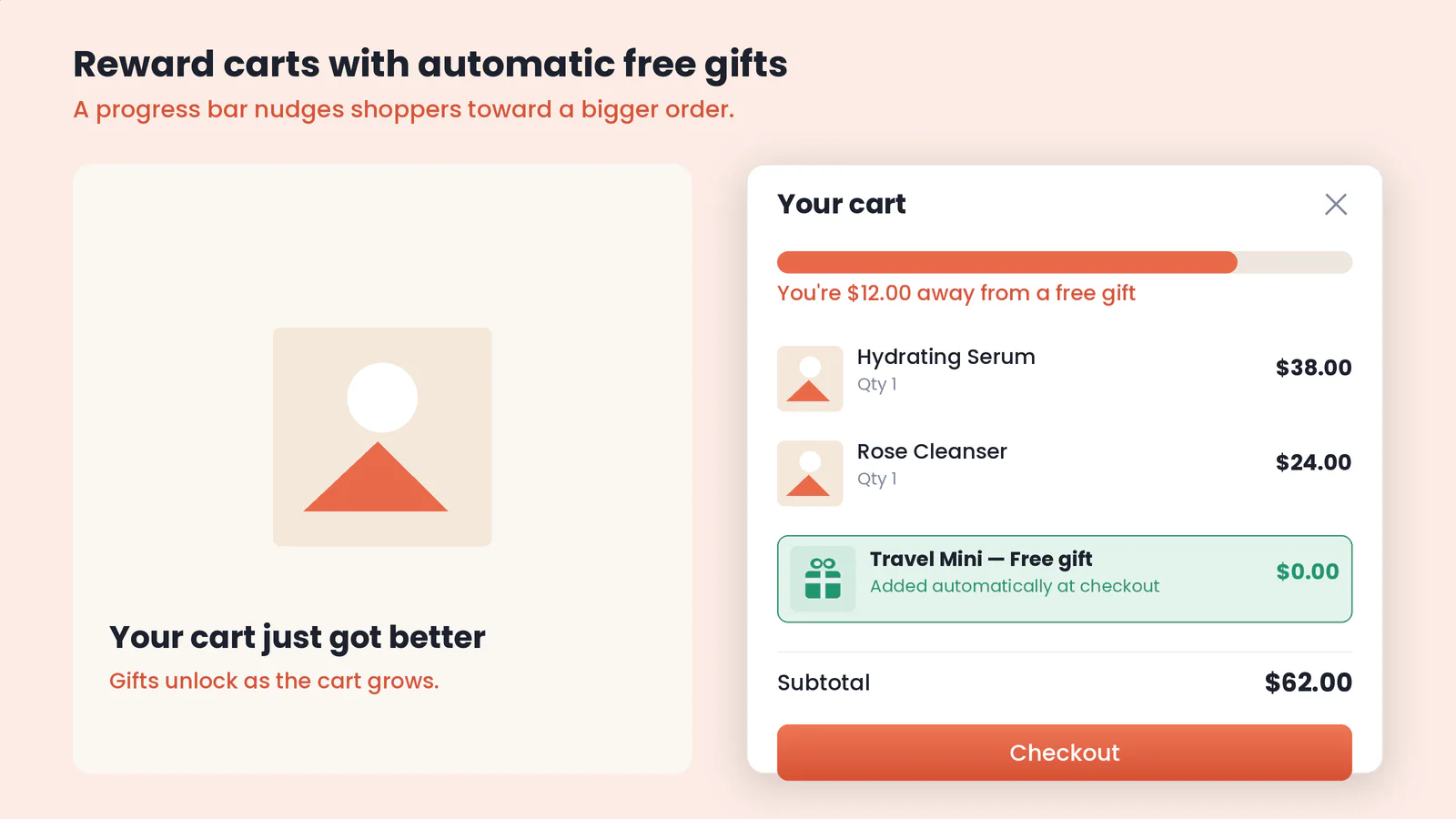
See how it works →Let the gift arrive at exactly the right step.
Make it optional or required. Preselect it. Let shoppers swap it, narrow the choices, or lock the selection completely.
Know what happens before you publish.
Do I need to edit code or hire a developer?
No. Campaigns are created in the app, the bundle builder is added from your theme editor like any other block, and pricing applies automatically at checkout. Code only comes into it if you want a fully custom bundle page — there's a developer route for that on the Theme setup page, but the standard setup never touches code.
Read the complete answerWhat happens when two campaigns include the same products?
Cinch detects live campaigns that directly target the same products or variants and explains the overlap. The admin scan does not expand collection membership, so review broad collection campaigns too.
Read the complete answerHow do bundle orders appear in my Shopify admin?
As the real products. Every bundle order lists the individual items inside it — actual SKUs and quantities — so orders, reports, and fulfillment all see ordinary line items. No setup required.
Read the complete answerWhat's free, and what needs a paid plan?
Browsing is free: explore the app, build and edit draft campaigns, preview every design, and export your data. A paid plan covers the parts that reach customers — publishing campaigns, setting them live, and adding the theme designs to your store.
Read the complete answerThe bundle builder isn't showing on my store — what should I check?
- The campaign is Live, not Draft — and its start date has arrived.
- It's been published — if you see “You have unpublished changes”, press “Publish changes”.
- The Bundle block was added to that page in your theme editor, and the campaign's “Where it shows” step includes that spot.
- The products on the page are eligible in the campaign.