
Editorial
A warm full-page builder with spacious cards, real swatches, optional gift-first cards, and a header-aware editorial summary.
Built for: Brands with strong photography that want a quieter, editorial feel.
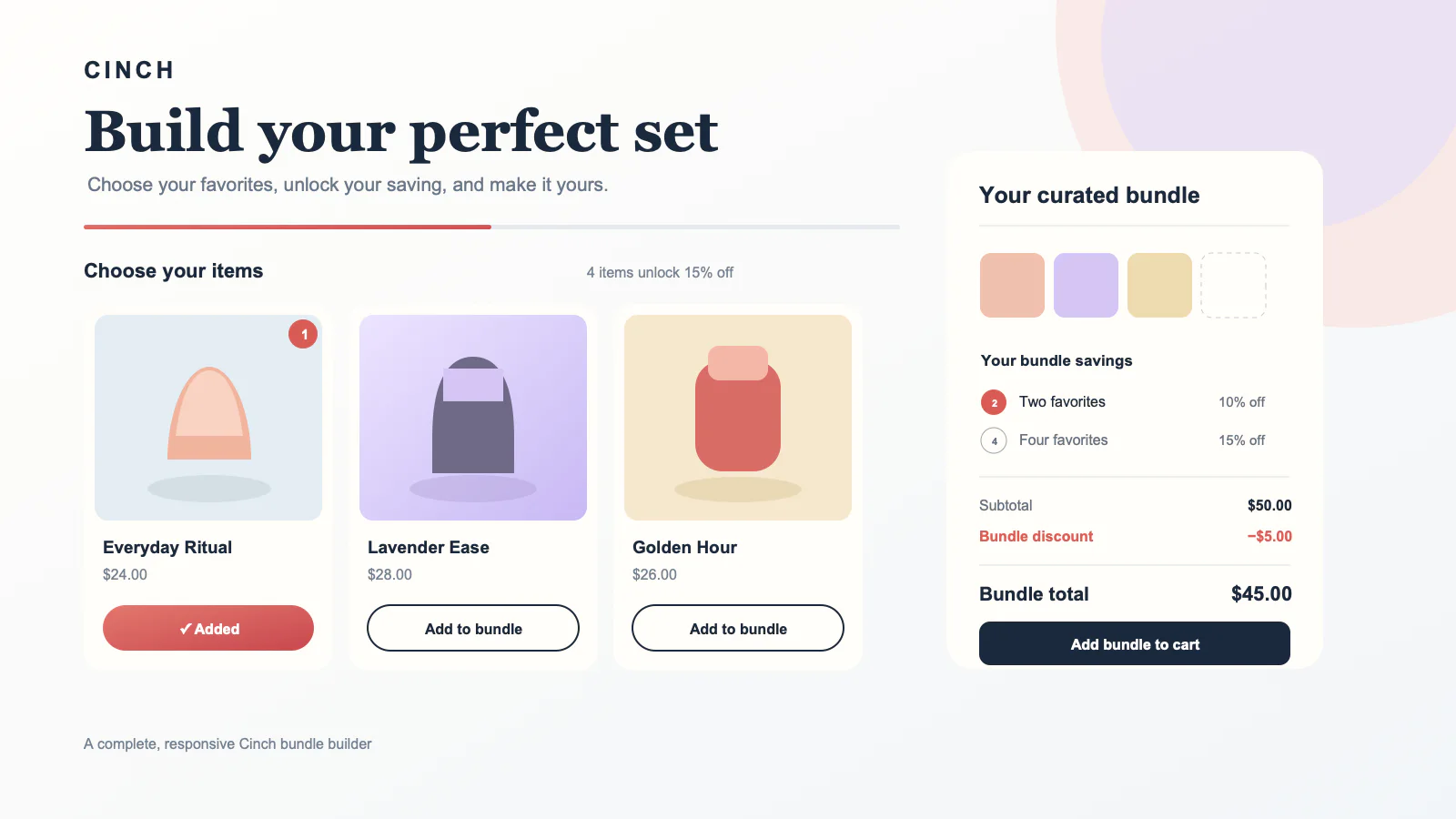
Use the controls merchants actually get.
The catalog data is illustrative. Every configurable section and block setting, plus each folded variant, is synced from the committed Liquid schema.
How Editorial handles each offer.
The four campaign tabs in the demo show one illustrative state per supported builder mode, including selectable, preselected, and locked gift states. Fixed bundles use a standard product page and expand at checkout.
| Campaign state | Rendering in this design |
|---|---|
| Custom bundle | Product selection, progress, qualifying step, totals, and add-to-cart. |
| Build-a-box sections | Named groups and live section counts within the shared storefront payload. |
| Quantity breaks | Compatible rendering through the design’s product and step UI. |
| Free gifts | Selectable, preselected, and locked gift states; locked gifts can render as Included free. |
| Fixed bundle | Not applicable. Shoppers buy the fixed parent product through its standard product form. |
The schema, rendered without drift.
115 settings across the section and its reorderable blocks.
| Group | Setting | Type | Options | Default | What it changes |
|---|---|---|---|---|---|
| Section | Campaign ID (optional) | text | — | Theme default | Empty = automatic: on a product page, the campaign whose bundle product this is; otherwise the highest-priority published campaign with a landing placement. IDs (cmp-…) appear in the app's campaign editor URL and Diagnostics page. |
| Section | Section heading | text | — | Build your perfect set | Controls this part of the section in the Theme Editor. |
| Section | Subheading | text | — | Theme default | Controls this part of the section in the Theme Editor. |
| Section | Panel heading | text | — | Your curated bundle | Controls this part of the section in the Theme Editor. |
| Section | Panel subheading | text | — | Theme default | Controls this part of the section in the Theme Editor. |
| Section | Accent color | color | — | #d85b54 | Controls this part of the section in the Theme Editor. |
| Section | Text color | color | — | #182337 | Controls this part of the section in the Theme Editor. |
| Section | Card background | color | — | #fffdf9 | Controls this part of the section in the Theme Editor. |
| Section | Image fit | select | Cover (crop to fill), Contain (show whole product) | cover | Cover fills the shape and crops edges; Contain shows the whole product without cropping. |
| Section | Card frame | select | Boxed, Bare | box | Boxed draws a border and background around each card; Bare removes them so the image runs edge to edge and blends into the page. |
| Section | Panel background | color | — | #fffdf9 | Controls this part of the section in the Theme Editor. |
| Section | Panel text color | color | — | #182337 | Controls this part of the section in the Theme Editor. |
| Section | Section background | color | — | Theme default | Leave empty to keep the design's soft gradient backdrop. |
| Section | Corner style | select | Rounded, Soft, Square | rounded | Controls this part of the section in the Theme Editor. |
| Section | Content width | range | — | 1320 | Controls this part of the section in the Theme Editor. |
| Section | Sticky summary panel | checkbox | — | On | Controls this part of the section in the Theme Editor. |
| Section | Sticky panel offset (fallback) | range | — | 24 | The panel now sits below your theme header automatically. This is a minimum used only if no sticky header is found. |
| Section | Variant options | select | Color swatches and buttons, Buttons, Dropdowns | swatches | Products with multiple options show one row per option, such as Color and Size. |
| Section | Swap button on full single-choice sections | text | — | Choose this instead | Controls this part of the section in the Theme Editor. |
| Message bar | Show progress bar | checkbox | — | On | Controls this part of the section in the Theme Editor. |
| Message bar | Empty state | text | — | Add your first product to start saving | Controls this part of the section in the Theme Editor. |
| Message bar | Progress ({remaining}, {label}, {discount}) | text | — | Add {remaining} more to unlock {discount}% off | Controls this part of the section in the Theme Editor. |
| Message bar | Gift prompt | text | — | Nice! Choose your free gifts below | Controls this part of the section in the Theme Editor. |
| Message bar | Ready ({discount}) | text | — | {discount}% off unlocked — add your bundle to the cart! | Controls this part of the section in the Theme Editor. |
| Message bar | Adding | text | — | Adding your bundle… | Controls this part of the section in the Theme Editor. |
| Message bar | Added | text | — | Your bundle is in the cart 🎉 | Controls this part of the section in the Theme Editor. |
| Message bar | Over largest bundle | text | — | You’ve exceeded the largest bundle size — remove some items | Controls this part of the section in the Theme Editor. |
| Message bar | Section below minimum ({remaining}, {label}) | text | — | Add {remaining} more to {label} | Controls this part of the section in the Theme Editor. |
| Message bar | Editing a carted bundle | text | — | You’re editing a bundle from your cart — updating replaces it. | Controls this part of the section in the Theme Editor. |
| Message bar | Editing: unavailable items ({dropped}) | text | — | Heads up: {dropped} item(s) from your original bundle are no longer available and won’t be included. | Controls this part of the section in the Theme Editor. |
| Message bar | paragraph | — | Theme default | Controls this part of the section in the Theme Editor. | |
| Countdown timer | paragraph | — | Theme default | Controls this part of the section in the Theme Editor. | |
| Countdown timer | Label | text | — | Ends in | Controls this part of the section in the Theme Editor. |
| Countdown timer | Ended text | text | — | Offer ended | Controls this part of the section in the Theme Editor. |
| Products | paragraph | — | Theme default | Controls this part of the section in the Theme Editor. | |
| Products | Layout | select | Grid, List | grid | Controls this part of the section in the Theme Editor. |
| Products | Columns (desktop) | range | — | 3 | Controls this part of the section in the Theme Editor. |
| Products | Columns (mobile) | range | — | 2 | Controls this part of the section in the Theme Editor. |
| Products | Image shape | select | Portrait, Square, Landscape | portrait | Controls this part of the section in the Theme Editor. |
| Products | Show products from | collection | — | Theme default | Optional. Shows this collection's products in the collection's order, and each card can use the product's full details. Products also need to be in the published campaign to appear. Leave empty to show the campaign's products. |
| Products | Add button label | text | — | Add to bundle | Controls this part of the section in the Theme Editor. |
| Products | Added button label | text | — | Added | Controls this part of the section in the Theme Editor. |
| Products | Show product badges | checkbox | — | Off | Short labels like New or Refillable, from the badges saved on each product. Gift cards keep their gift badge instead. |
| Products | Show review stars | checkbox | — | Off | Uses the rating your reviews app saves on each product. |
| Products | Review count suffix | text | — | Theme default | Shown after the number, e.g. (128 Reviews). Leave empty to show only the number. |
| Products | Sold-out products | select | Hide them, Show them grayed out | hide | Controls this part of the section in the Theme Editor. |
| Products | Sold out label | text | — | Sold out | Controls this part of the section in the Theme Editor. |
| Products | Show free gifts as the first cards | checkbox | — | Off | Gift cards show the gift's regular price crossed out. The bundle rules still decide when the gift is included. |
| Products | Gift card badge | text | — | Free gift | Controls this part of the section in the Theme Editor. |
| Products | Gift status before it's earned | text | — | Yours free with this bundle | Controls this part of the section in the Theme Editor. |
| Products | Gift status once included | text | — | ✓ Included free | Controls this part of the section in the Theme Editor. |
| Products | Per-product limit note ({max}) | text | — | Limit {max} per product | Controls this part of the section in the Theme Editor. |
| Products | paragraph | — | Theme default | Controls this part of the section in the Theme Editor. | |
| Products | Show the toolbar from | range | — | 9 | Controls this part of the section in the Theme Editor. |
| Products | Search | checkbox | — | On | Controls this part of the section in the Theme Editor. |
| Products | Search placeholder | text | — | Search products | Controls this part of the section in the Theme Editor. |
| Products | Sorting | checkbox | — | On | Controls this part of the section in the Theme Editor. |
| Products | Sort: featured | text | — | Featured | Controls this part of the section in the Theme Editor. |
| Products | Sort: price up | text | — | Price: low to high | Controls this part of the section in the Theme Editor. |
| Products | Sort: price down | text | — | Price: high to low | Controls this part of the section in the Theme Editor. |
| Products | Sort: title A–Z | text | — | Title: A to Z | Controls this part of the section in the Theme Editor. |
| Products | Sort: title Z–A | text | — | Title: Z to A | Controls this part of the section in the Theme Editor. |
| Products | Filters | checkbox | — | On | Filter chips are built from each product's options (like Color or Size) and the group's price range. |
| Products | Filter button label | text | — | Filter | Controls this part of the section in the Theme Editor. |
| Products | Load products in pages | checkbox | — | On | Controls this part of the section in the Theme Editor. |
| Products | Products per page | range | — | 24 | Controls this part of the section in the Theme Editor. |
| Products | Load more button ({count}) | text | — | Show more ({count} left) | Controls this part of the section in the Theme Editor. |
| Products | Result count ({count}) | text | — | {count} products | Controls this part of the section in the Theme Editor. |
| Products | Result count, paged ({shown}, {count}) | text | — | Showing {shown} of {count} | Controls this part of the section in the Theme Editor. |
| Products | No results heading | text | — | No products found | Controls this part of the section in the Theme Editor. |
| Products | No results hint | text | — | Try a different search or clear the filters. | Controls this part of the section in the Theme Editor. |
| Products | Clear filters label | text | — | Clear all filters | Controls this part of the section in the Theme Editor. |
| Products | Selected items hidden note ({count}) | text | — | {count} selected item(s) are not shown right now. | Controls this part of the section in the Theme Editor. |
| Products | Show hidden items button | text | — | Show them | Controls this part of the section in the Theme Editor. |
| Products | Price filter label | text | — | Price | Controls this part of the section in the Theme Editor. |
| Products | Price filter: under ({price}) | text | — | Under {price} | Controls this part of the section in the Theme Editor. |
| Products | Price filter: over ({price}) | text | — | Over {price} | Controls this part of the section in the Theme Editor. |
| Products | Section status ({label}, {count}, {max}) | text | — | {label}: {count} of {max} | Controls this part of the section in the Theme Editor. |
| Products | Section status, no max ({label}, {count}, {min}) | text | — | {label}: {count} selected — pick at least {min} | Controls this part of the section in the Theme Editor. |
| Products | Section status, optional ({label}, {count}) | text | — | {label}: {count} chosen | Controls this part of the section in the Theme Editor. |
| Products | Tier deal ({min}, {discount}) | text | — | Buy {min}+ — save {discount}% | Controls this part of the section in the Theme Editor. |
| Products | Per-unit price ({price}) | text | — | {price} each | Controls this part of the section in the Theme Editor. |
| Bundle slots | Style | select | Image mosaic, Numbered list | mosaic | The numbered list shows each slot on its own line with the discount it unlocks. |
| Bundle slots | Slots per row | range | — | 4 | Image mosaic only. |
| Bundle slots | Slot size | select | Small, Medium, Large | medium | Image mosaic only. |
| Bundle slots | Empty slot label | text | — | Select product | Shows in unfilled slots of the numbered list. |
| Bundle slots | Show gifts in the slots | checkbox | — | Off | Free gifts get their own boxes before the numbered ones, so the slots show the whole bundle. |
| Bundle slots | Gift slot label | text | — | Free gift | Shows in the gift box until the gift is earned. |
| Quick view | paragraph | — | Theme default | Controls this part of the section in the Theme Editor. | |
| Quick view | Photo hover label | text | — | Quick view | Controls this part of the section in the Theme Editor. |
| Quick view | Show the price | checkbox | — | On | Controls this part of the section in the Theme Editor. |
| Quick view | Show review stars | checkbox | — | On | Controls this part of the section in the Theme Editor. |
| Quick view | Show badges as checkmarks | checkbox | — | On | The product's badges, listed like feature checkmarks. |
| Quick view | Show the description | checkbox | — | On | Loads the product's own description when the window opens. |
| Quick view | Description length | select | Short, Medium, Long | medium | Controls this part of the section in the Theme Editor. |
| Quick view | Show an add button | checkbox | — | On | Controls this part of the section in the Theme Editor. |
| Quick view | Add button label | text | — | Add to bundle | Controls this part of the section in the Theme Editor. |
| Quick view | Added button label | text | — | ✓ Added | Controls this part of the section in the Theme Editor. |
| Quick view | Link to the product page | checkbox | — | On | Controls this part of the section in the Theme Editor. |
| Quick view | Product page link label | text | — | View full details | Controls this part of the section in the Theme Editor. |
| Discount ladder | Heading | text | — | Theme default | Optional — shows above the tier list. |
| Free gifts | Heading | text | — | Your free gifts | Controls this part of the section in the Theme Editor. |
| Free gifts | Guaranteed-gift label | text | — | Included free | Shown on a preselected gift the customer can't change. |
| Totals | Subtotal label | text | — | Subtotal | Controls this part of the section in the Theme Editor. |
| Totals | Discount label | text | — | Bundle discount | Controls this part of the section in the Theme Editor. |
| Totals | Total label | text | — | Bundle total | Controls this part of the section in the Theme Editor. |
| Totals | Show a savings line | checkbox | — | Off | Counts the discount plus the value of any free gifts. |
| Totals | Savings line ({value}) | text | — | You save {value} | Controls this part of the section in the Theme Editor. |
| Add to cart | Button label | text | — | Add bundle to cart | Controls this part of the section in the Theme Editor. |
| Add to cart | Button label while items are needed ({remaining}) | text | — | Theme default | Shows on the button until the bundle qualifies, for example "Add {remaining} more items". Leave blank to keep the main label. |
| Add to cart | Show the total on the button | checkbox | — | Off | Controls this part of the section in the Theme Editor. |
| Add to cart | Button label while editing a carted bundle | text | — | Update bundle | Controls this part of the section in the Theme Editor. |
| Add to cart | Updated message | text | — | Your bundle is updated 🎉 | Controls this part of the section in the Theme Editor. |
| Add to cart | Show error messages | checkbox | — | On | Controls this part of the section in the Theme Editor. |
| Add to cart | Open the cart after adding | checkbox | — | On | Opens your theme's cart drawer when the bundle is added. Themes that don't support this ignore it. |
Your words stay in the theme.
Generic storefront wording is theme-owned. The campaign keeps only the cart title and each step’s message and badge.
Section · Section headingBuild your perfect set
Build your summer set
Editable in this design
- Campaign ID (optional)Section
- Section headingSection
- SubheadingSection
- Panel headingSection
- Panel subheadingSection
- Swap button on full single-choice sectionsSection
- Empty stateMessage bar
- Progress ({remaining}, {label}, {discount})Message bar
- Gift promptMessage bar
- Ready ({discount})Message bar
- AddingMessage bar
- AddedMessage bar
Keep what earns its place.
Removing a block removes that presentation layer, not the checkout rule. Shopify still validates the price.
Message bar
Removes the progress, ready, and status message area.
Countdown timer
Removes the schedule-bound countdown from this design.
Products
Removes the product or quantity selection surface.
Bundle slots
Removes the numbered or mosaic selection-slot presentation.
Quick view
Removes the optional product quick-view modal.
Discount ladder
Removes the visible discount-step ladder, not the checkout rule.
Free gifts
Removes the dedicated free-gift presentation area.
Totals
Removes the illustrative subtotal, savings, and total display.
Add to cart
Removes the design’s add-bundle button.
Pick the least complicated path that fits.
Theme app block
The standard no-theme-write route. It uses the app-block renderer rather than installing this committed design file.
One-click is gated
This path stays hidden in production until the protected theme-write capability is available.
Manual install
Copy the self-contained section, then create or assign the corresponding page or product template.
Change the presentation without changing the pricing authority.
The theme renders the campaign, the storefront engine owns selection and cart intent, and Shopify checkout validates the result.
Three layers, one direction
- Theme and published Shopify data
- Selection and cart engine
- Shopify checkout pricing